Chrome Extension Icon Sizes: The Complete Guide
Which icon sizes Chrome actually needs, where each one appears, and why SVG toolbar icons silently fail.
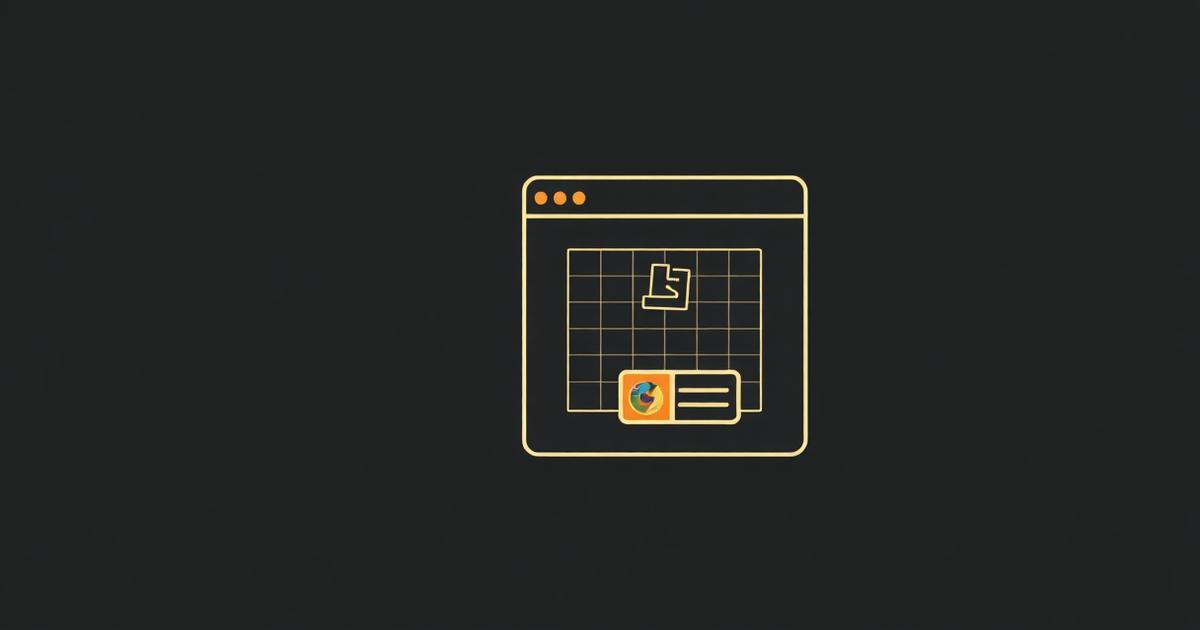
Missing or wrongly sized icons are the most common reason an extension looks unfinished — Chrome falls back to a grey puzzle piece in the toolbar.
The four sizes and where they appear
- 16x16 — favicon-scale, used in the extension page and context menus.
- 32x32 — Windows systems and higher-DPI toolbar rendering.
- 48x48 — the chrome://extensions management page.
- 128x128 — installation dialog and the Chrome Web Store listing.
action.default_icon vs icons
The top-level "icons" object controls install and management surfaces. "action": { "default_icon": { ... } } controls the toolbar button. Declare both, pointing at the same PNG set.
Use PNG, not SVG
Chrome's toolbar does not render SVG icons. If you design in SVG, rasterise to PNG at each size before packaging — ManifestGo does this automatically for every build.
Design tips
- Keep the mark readable at 16px — one shape, high contrast, no fine text.
- Use a transparent background so the icon sits well on light and dark toolbars.
- Export at exact pixel sizes rather than letting the browser downscale 128px art.
Exact pixel dimensions checklist
- 16x16 — toolbar icon on standard-DPI displays, context menu items, and the extensions page favicon.
- 32x32 — toolbar icon at 2x scaling on Windows and some Linux DPI settings.
- 48x48 — the chrome://extensions card thumbnail and the extension details page.
- 128x128 — the install confirmation dialog and the Chrome Web Store listing thumbnail.
Store listing images are a separate set
The 128x128 manifest icon is not the same asset as your Chrome Web Store promotional images. The dashboard also wants at least one 1280x800 or 640x400 screenshot, and optionally a 440x280 small promo tile — none of these belong in manifest.json.
What happens with a missing size
If you omit a size Chrome needs for the current context, Chrome scales the nearest larger icon down rather than failing to load — but downscaled art often looks soft at 16px, which is why declaring all four sizes as individually exported PNGs looks noticeably crisper than relying on one master image.
Dark and light toolbar theme considerations
Chrome does not support separate light/dark icon variants declared in the manifest the way macOS menu bar apps do. Design a single icon with enough contrast and a transparent background to read clearly on both light and dark toolbar themes, or bias it toward whichever theme most of your users run.
Generating a full icon set from one source image
- Start from a single 512x512 or larger master PNG or vector file.
- Export at exactly 16, 32, 48 and 128px — avoid letting an image editor's 'fit to size' resample blurrily.
- Flatten transparency correctly; some export pipelines add an unwanted white background at small sizes.
- ManifestGo generates this full icon set automatically from a text prompt or an uploaded logo, sized and exported for both the toolbar action and the manifest icons block.
Frequently asked questions
Are all four icon sizes required?
Technically only 128x128 is required for the Web Store, but shipping 16, 32, 48 and 128 avoids blurry rendering and the default puzzle-piece icon.
Can I use a .ico file for a Chrome extension icon?
No. Chrome extensions require PNG image files for icons; .ico and .svg are not accepted in the icons or action.default_icon manifest fields.
Does the toolbar icon size change between Windows, Mac and ChromeOS?
The manifest sizes are the same across platforms, but each OS's rendering pipeline may pick a different one of the four sizes depending on display scaling, which is exactly why all four should be supplied.
Why does my icon look fine at 128px but blurry at 16px?
You likely only declared one large icon and let Chrome downscale it at runtime; export a dedicated 16x16 PNG by hand or with an image tool instead of relying on automatic scaling.