Chrome Extension Popup Tutorial: Build a Toolbar UI
How to build a popup UI for a Chrome extension — markup, scripts, sizing and messaging — without hitting Manifest V3 CSP errors.
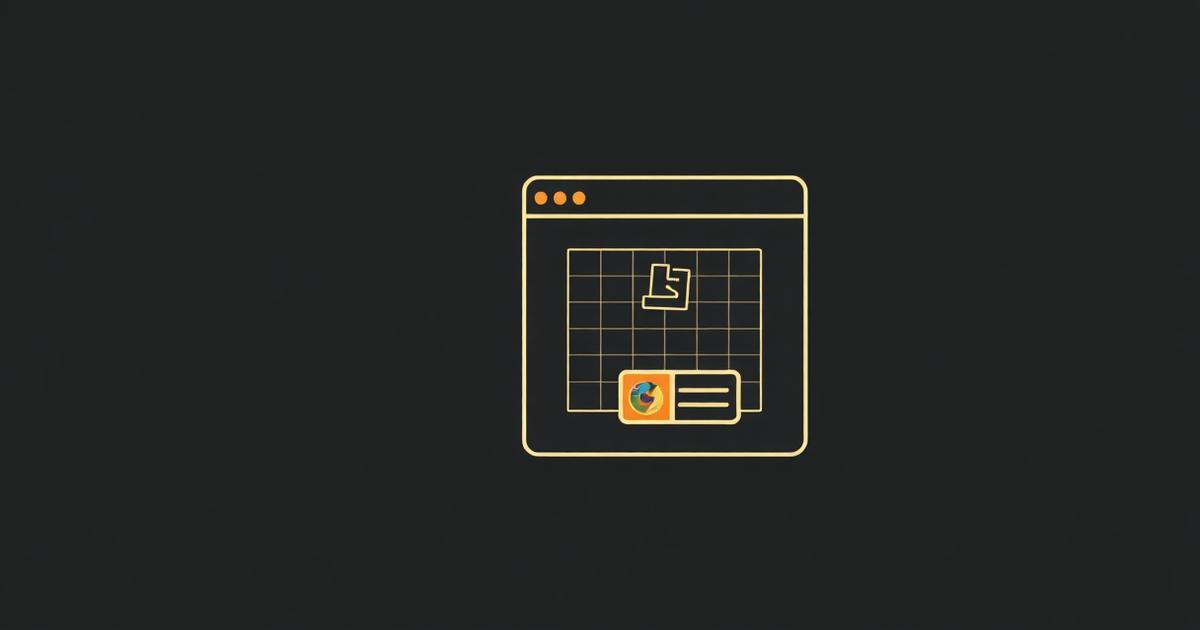
The popup is the small panel that opens when a user clicks your toolbar icon. It is a normal HTML page with extension privileges, but a few Manifest V3 rules trip people up on their first build.
Wire the popup into the manifest
Add "action": { "default_popup": "popup.html" } to manifest.json. Chrome opens that file each time the icon is clicked, and closes it whenever focus is lost — so the popup has no long-lived state.
Write CSP-safe code
- No inline <script> blocks and no onclick attributes — both are blocked by MV3 CSP.
- Load popup.js with a <script src="popup.js"></script> tag at the end of the body.
- Attach handlers with addEventListener inside a DOMContentLoaded listener.
- No remote CDN scripts or fonts; bundle everything locally.
Sizing the popup
Chrome sizes the popup to its content, up to 800x600. Set an explicit width (320–420px is comfortable) on the body and avoid percentage heights, which collapse to zero.
Talking to the service worker
Use chrome.runtime.sendMessage from the popup and chrome.runtime.onMessage.addListener in background.js. Because the popup dies on close, persist anything durable with chrome.storage rather than in-memory variables.
Passing data into the popup on open
The popup has no URL parameters to work with, so the standard pattern is: on DOMContentLoaded, call chrome.tabs.query({ active: true, currentWindow: true }) to get the active tab, then chrome.storage.local.get() or a chrome.runtime.sendMessage() round trip to the service worker to fetch whatever state you need to render.
Popup vs side panel
- chrome.sidePanel (Chrome 114+) stays open across navigation and tab switches, unlike the popup which closes on blur.
- Declare it with a top-level "side_panel": { "default_path": "sidepanel.html" } and the "sidePanel" permission.
- Use chrome.sidePanel.open({ tabId }) to open it programmatically, typically from a context menu or the action's onClicked handler.
- Pick the popup for quick one-shot actions and the side panel for anything resembling a persistent tool.
Multiple popup states without a framework
A common bug is a popup that always shows a loading spinner. Render a skeleton state synchronously, then swap in real content once your async storage or message call resolves — never block the initial paint waiting on chrome.storage, since it can take a frame or two on a cold service worker.
Badge text as a lightweight alternative
chrome.action.setBadgeText({ text: "3" }) and chrome.action.setBadgeBackgroundColor({ color: "#DB2777" }) put a small counter on the toolbar icon itself. This is often a better fit than opening the popup for pure notification-style status, and it works even when the popup has never been opened.
Testing popup behavior with DevTools
- Right-click the toolbar icon and choose 'Inspect popup' to open a detached DevTools window that stays attached while the popup is open.
- Use the Sources panel to set breakpoints in popup.js exactly like a normal page.
- Watch the Network tab to confirm no requests are firing to remote CDNs, which MV3 CSP would otherwise block silently.
A popup that has to think before it renders feels broken. Show something instantly, then update it.
Frequently asked questions
Why is my popup blank?
Usually an inline script blocked by CSP or a wrong file path in default_popup. Right-click the icon and choose Inspect popup to see the console error.
Can the popup stay open when I click the page?
No. Popups close on blur. Use a side panel or an injected content-script UI if you need a persistent surface.
Why does my popup close when I open DevTools?
It doesn't if you use 'Inspect popup' from the right-click menu, which detaches DevTools into its own window. Opening a separate DevTools window and then clicking the icon again will close the popup because focus moved away from it.
Can I animate the popup opening?
You can animate content inside the popup with CSS transitions, but you cannot control the native open/close animation Chrome itself performs on the panel.
How big can a popup be?
Chrome caps popup dimensions at 800x600 pixels; anything larger is clipped, so complex UIs should move to an options page or side panel instead.