How to Publish a Chrome Extension to the Web Store (2026 Guide)
Step-by-step: from a generated .zip to a live listing on the Chrome Web Store, including review tips that get you approved on the first try.
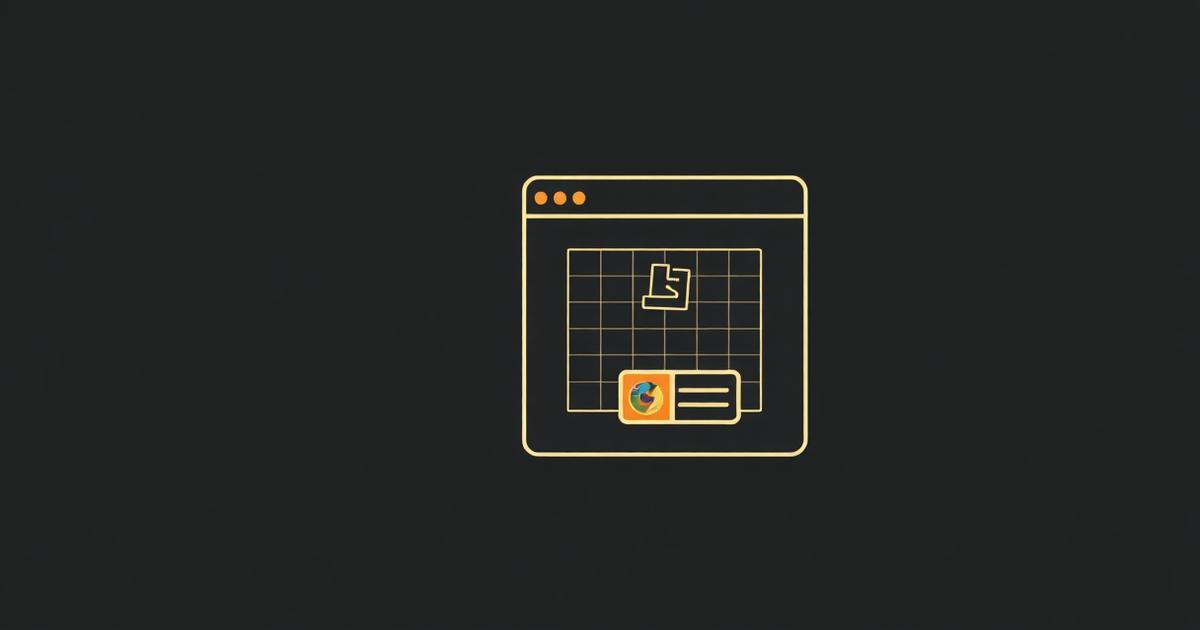
Building the extension is the easy part. Getting it through Chrome Web Store review is where most first-time publishers stall. Here's the exact path from a ManifestGo-generated .zip to a live listing.
Before you upload
- Pay the one-time $5 Chrome Web Store developer fee.
- Prepare a 128x128 icon, at least one 1280x800 screenshot, and a short promo tile.
- Write a 132-character summary and a longer description that explains the value, not the implementation.
- Make sure your Manifest V3 permissions are the minimum needed — every extra permission slows review.
The upload flow
- Go to chrome.google.com/webstore/devconsole and click 'New item'.
- Upload the .zip ManifestGo generated.
- Fill in store listing: name, summary, description, screenshots, category.
- Add a privacy policy URL — required even if you don't collect data.
- Justify each permission in the 'Privacy practices' tab.
- Submit for review.
Why extensions get rejected
- Requesting broad host permissions (`<all_urls>`) without justification.
- Missing or generic privacy policy.
- Screenshots that don't match the described functionality.
- Remote code execution — banned under MV3.
Review usually takes 1-3 business days for a clean submission. If you're rejected, the email tells you exactly which policy to fix — resubmit the same day.
The exact assets the developer dashboard requires
- A 128x128 PNG icon uploaded separately from the manifest icon, used for the store listing tile.
- At least one screenshot between 1280x800 or 640x400 pixels, PNG or 24-bit JPG, no alpha channel.
- An optional but recommended small promo tile at 440x280 and marquee at 1400x560 for featured placement eligibility.
- A single-purpose description — Chrome policy requires each extension to have one narrow purpose, and multi-purpose descriptions are a common rejection trigger.
Reading rejection emails correctly
Rejection emails cite a specific policy section, such as 'Purple Blue Category: Permissions' or 'User Data Privacy'. The most common in 2026: 'Your item requests permissions that are not used in the code' (a permission in manifest.json with no matching API call), and 'Insufficient privacy disclosures' (data-handling permissions declared without a matching privacy practices form entry).
The Privacy Practices tab, field by field
- Single Purpose — one sentence describing the extension's core function; anything broader triggers manual review.
- Permission justification — a text box per permission explaining why it's needed; empty or copy-pasted generic justifications are flagged.
- Data usage disclosure — checkboxes for whether you collect personally identifiable info, health info, financial info, or browsing activity; under-disclosure is treated as a policy violation even if unintentional.
- Certification checkbox confirming compliance with the Developer Program Policies, required before submission is accepted.
Review timelines and what speeds them up
First-time publisher accounts and extensions requesting powerful permissions (host_permissions beyond a handful of domains, debugger, or proxy) get routed to manual review, which can take up to several weeks. Extensions using few permissions and no remote data collection are often auto-approved within hours to a few days.
After you're live: updates and versioning
- Every update needs a strictly higher version number in manifest.json (Chrome compares dotted segments numerically, so 1.2.0 to 1.10.0 is a valid increase).
- Updates that add new permissions get re-reviewed with the same scrutiny as a new submission.
- Users on auto-update receive new versions within about 5 hours of approval, driven by Chrome's periodic update check (roughly every few hours) unless forced with chrome://extensions 'Update'.
- You can roll back by publishing a new version with a lower feature set, but you cannot revert to a literal previous version number.
Most rejections aren't about bad code — they're about an under-filled Privacy Practices form that doesn't match what the manifest actually requests.
Frequently asked questions
Can I publish an extension under a Google Workspace account instead of a personal Google account?
Yes, and this is common for teams, but Workspace admin settings must allow Chrome Web Store publishing; some organizations disable it by default, which surfaces as a permissions error during account setup.
What's the difference between 'Unlisted' and 'Private' visibility?
Unlisted means anyone with the direct link can install it but it won't appear in search; Private restricts installation to specific Google Workspace accounts or groups you designate, commonly used for internal company tools.
Does the Chrome Web Store charge anything beyond the one-time $5 fee?
No recurring platform fee exists for free extensions; Google does take a percentage of in-app purchases or paid extension sales processed through its payments system, but simple free listings only ever incur the one-time registration fee.